VOD Backend » History » Revision 24
« Previous |
Revision 24/26
(diff)
| Next »
Constantinos Lempidakis, 01/02/2025 02:22 PM
VOD Backend
-
"VOD page option" must be included in Canva for "Button" widget.
-
The backend of the VOD is described below:
Video-ON-Demand (VOD)
- When the user will press the "Video-ON-Demand (VOD)" button, a listing page will be displayed as the example below:
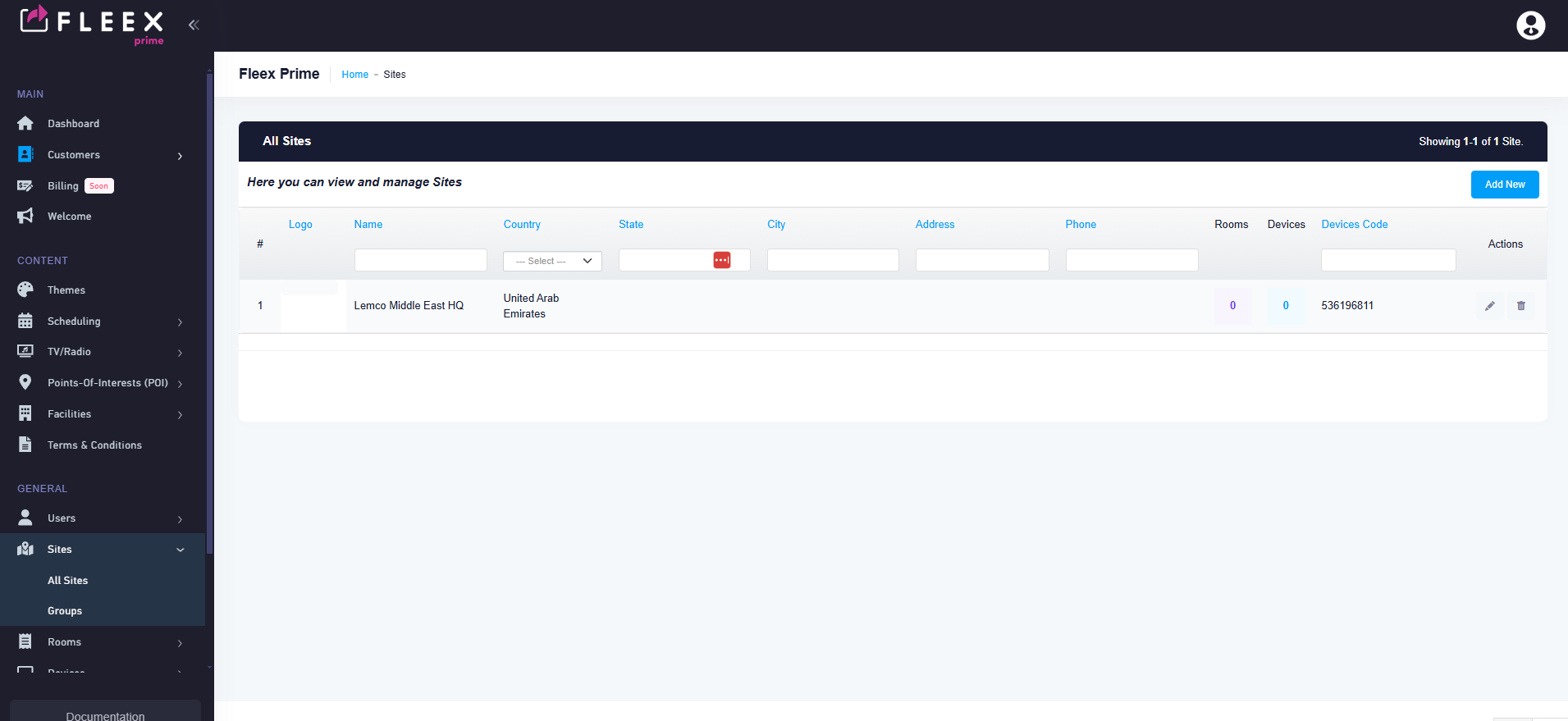
- Each Row will depict a VOD content eg. a movie or a series.
- At the upper right corner two buttons will exist as follow:
** Add New Content **
** Add New Series **
///////////////////////////////////////////////////////////////////////////////////////////////////////////////////////////////////////////////////////////////////
Add New Content
- By clicking the "Add New Content" button on the upper rigth corner the user will be able to add a new VOD content using a pop-up menu with the following options:
Main information
Language translation field (similar to other pages)
Title (Text field)
Short description (Small Text field)
Description (Small Text field)
Genre (Selection field)
Extra information
Cast (Text field)
Year (Text field)
Duration (time field)
Misc
Source (Text field)
Photo cover (Browse button to Media Library)
Video Trailer (Browse button to Media Library)
Price (Numeric field, Ignore if it belongs to a Series )
Site (Drop down menu, listing all the available sites)
Rating (Drop Down menu with the following options:TV-Y, TV-Y7, TV-G,TV-PG,TV-14,TV-MA) Based on wordwide rating: https://en.wikipedia.org/wiki/TV_Parental_Guidelines#External_links
Content descriptor (Mutliple select field: using the options below:
| Descriptor | Explanation |
|---|---|
| D | Sexual or suggestive dialogue |
| L | Coarse or crude language |
| S | Sexual situations |
| V | Violence |
Subtitles
Table menu, with Add row capabilities
Each row will be one new subtitle for this content. The available fields will be the following:
Name (Text field)
Browse subtitle (Select from Media library field)
/////////////////////////////////////////////////////////////////////////////////////////////////////////////////////////////////////////////////////////////////
Add New Series
- By clicking the "Add New Series" button on the upper rigth corner the user will be able to add a new VOD content using a pop-up menu with the following options:
Main information
Language translation field (similar to other pages)
Title (Text field)
Short description (Small Text field)
Description (Small Text field)
Genre (Selection field)
Extra information
Cast (Text field)
Year (Text field)
Duration (time field)
Misc
Content (Select field, available options all the TV content created using the above "Add New Content" procedure)
Photo cover (Browse button to Media Library)
Video Trailer (Browse button to Media Library)
Price (Numeric field, Ignore if it belongs to a Series )
Site (Drop down menu, listing all the available sites)
General Guidelines
- All the above fields must be available as columns in all listing pages
- All the above fields must have several filtering options in all listing pages
Updated by Constantinos Lempidakis over 1 year ago · 24 revisions